
Account Setup
Campus Parent portal accounts are automatically generated and sent via email to Parent/Guardian
The email will contain the username and a temporary password. Contact your students school office for any questions.
Login
Mobile App

Download the Campus Parent App


Quick Start Guide
District Name: Shakopee
**entering at least 3 characters
State: Minnesota

Select Shakopee Public Schools from the list

Login with an existing username and password
Logging in for the first time?
Upon first login, you will be required to complete 3 additional steps:
- Change the temporary password provided by the school
- Set a security account email
- Validate Security Account Email
Open the app and search for Shakopee and Minnesota, entering at least 3 characters
Select your district from the list
Login with username and temporary password > Change Password
- Old Password = Temporary Password
- The bar will turn Green at 100% when the Password Requirements are met


Set Email
**This does not update or change the email address the school has on file – though you can use the same email address. This email address will be used for any future Forgot Password requests.

Validate Email
Open Security Account Email from donotreply@shakopee.k12.mn.us > Click link to Validate
"This is a message from Shakopee Public Schools.
Please click on the link below to validate your Infinite Campus User Account email address: https://shakopeemn.infinitecampus.org/campus/uniquelink/XXXXXXXXXappName=shakopee
You are receiving this email because you are opted in to receive messages from your school. For more information, please contact your school."
Translations
Shakopee Public Schools has the following languages available in the Parent & Student Portals:
Amharic, Arabic, Armenian, Bosnian, Chinese (Simplified/Traditional), Croatian, English, French, Gujarati, Hmong, Japanese, Pashto, Russian, Somali, Spanish, Telugu, Thai, Turkish, Urdu, Ukrainian, and Vietnamese.
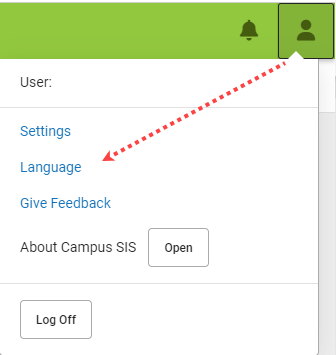
Once you are logged into the portal, from the User Menu (upper right corner) click Language
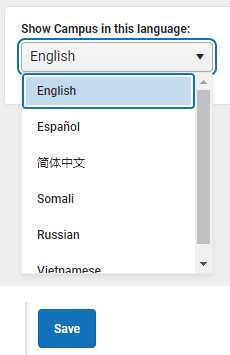
Select language > Save
Campus Tools
Annual Update
Complete the annual back to school update!
More > Online Registration > Start


Begin Registration

App Notifications
Notification settings allow users to opt out of receiving specific kinds of notifications and establish thresholds for those they want to receive. i.e. lunch balance falls below a dollar amount. Click the arrows to change the threshold or click and drag the dot.
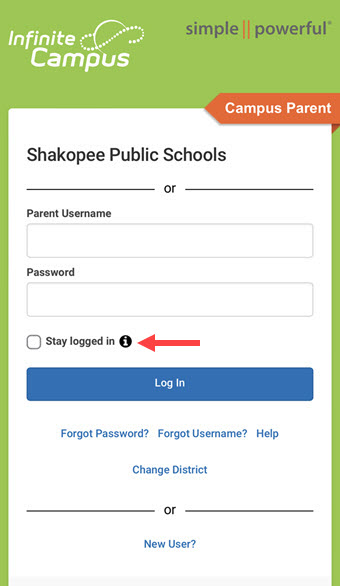
Before you log in, mark Stay Logged In to receive notifications.
User menu in the top right and then click Settings and Notification Settings.


Notifications are not sent for tools not enabled by the school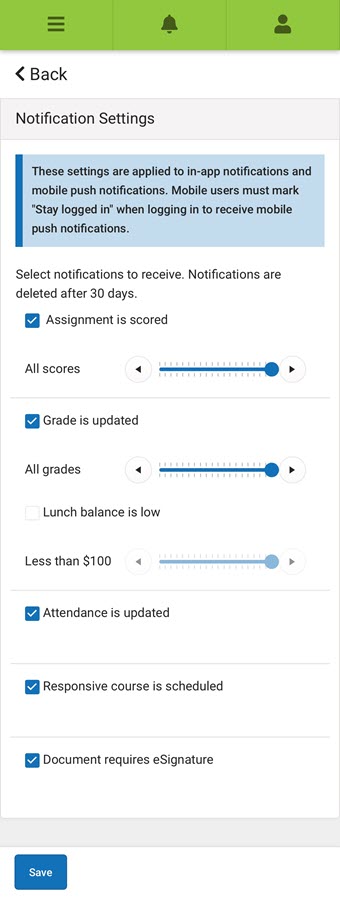
Assessments
Menu > More > Assessments

State Tests: MCA
District Tests: FAST
For more information on Assessments and Test Scores visit:
District Data & Assessment Website
Attendance
View Attendance
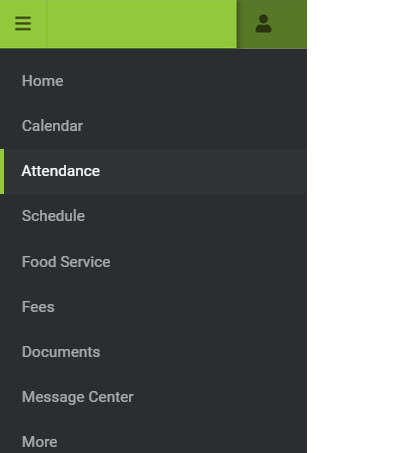
Menu > Attendance
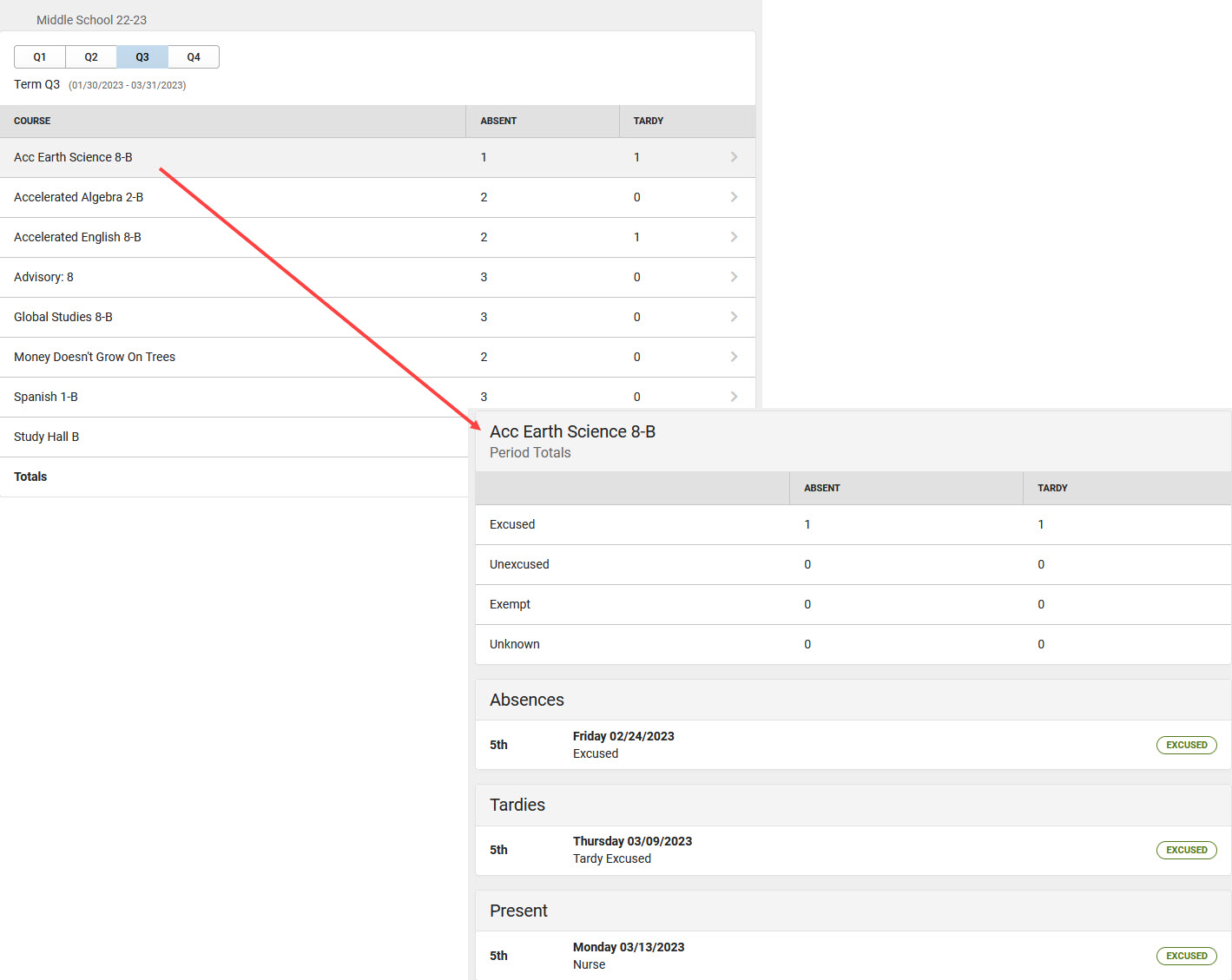
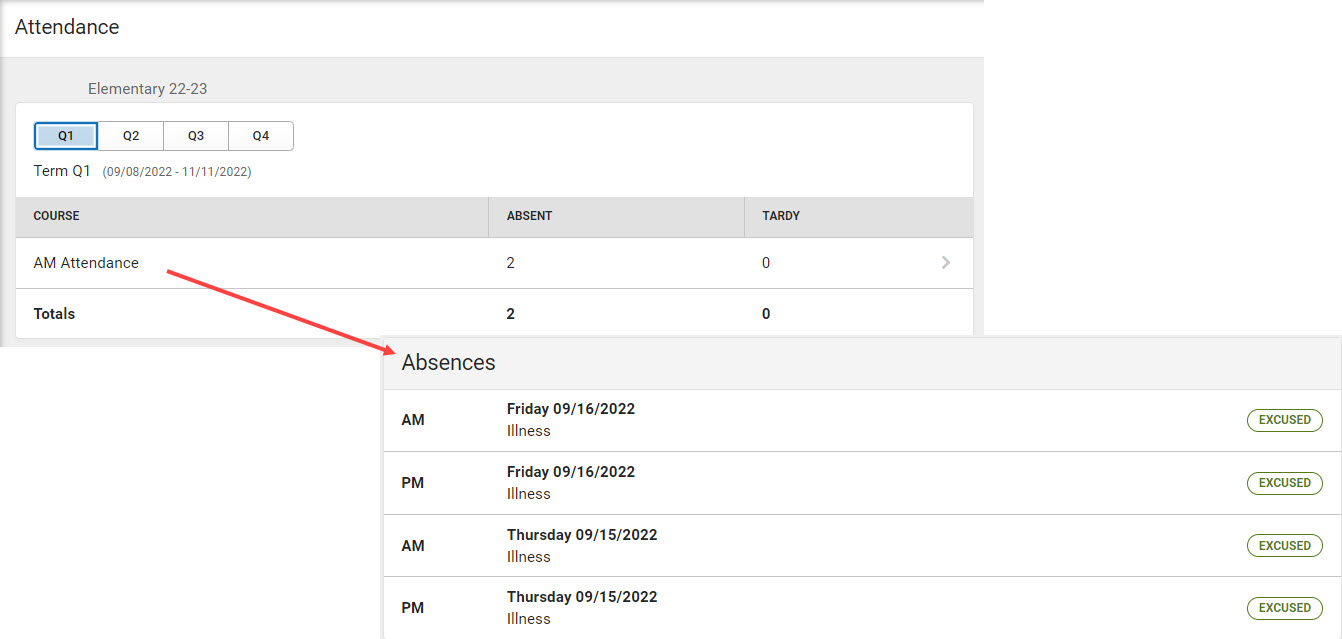
View absences and tardies for attendance taking periods in the selected term. Navigate between terms using the options at the top. Click on course to view detailed breakdown.
Submit Absence Request
Tool to inform school office in advance when their student is going to be absent, tardy or leave early. After the request if processed by the school it will create an attendance record for the student.
Menu > More > Absence Request
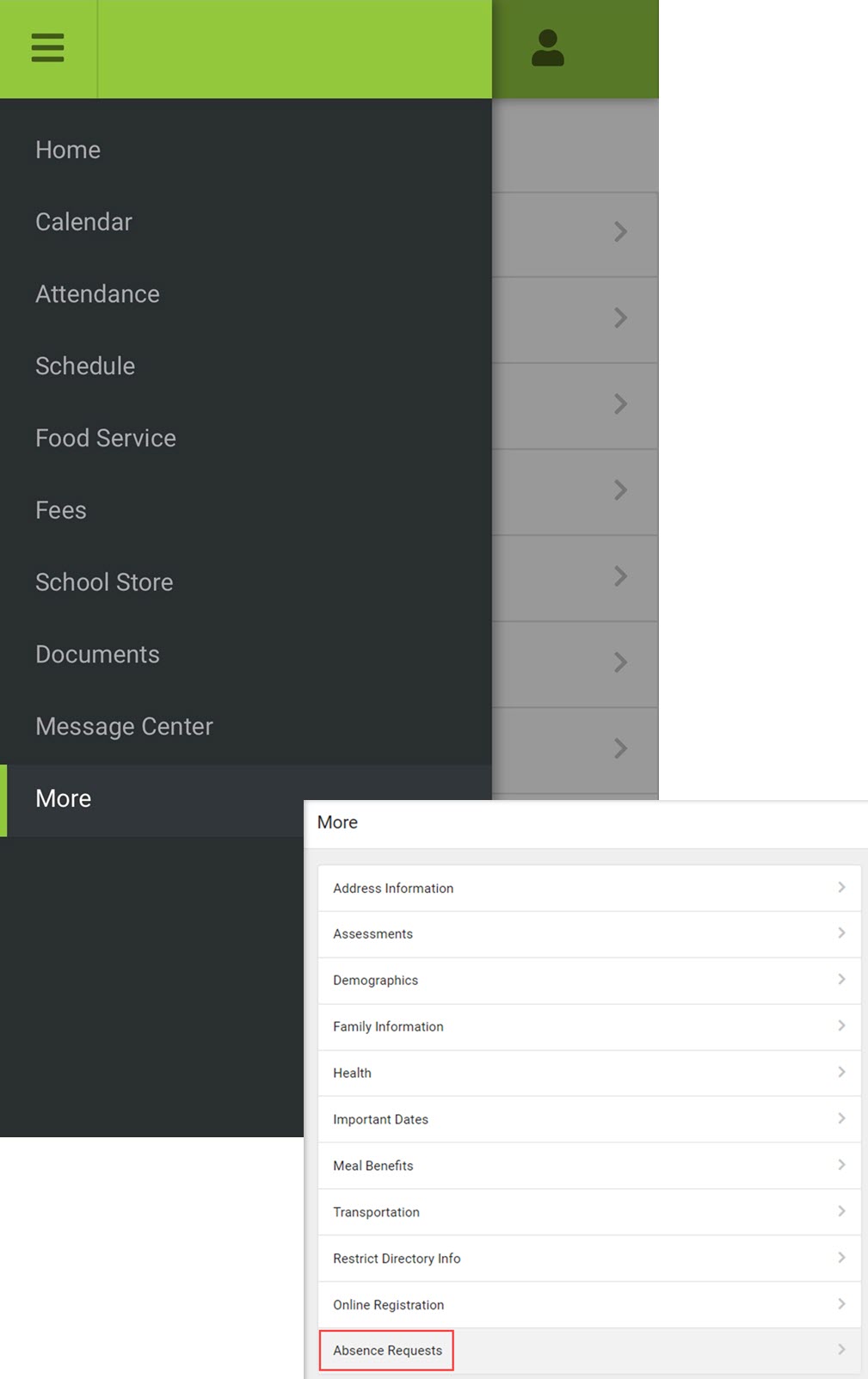
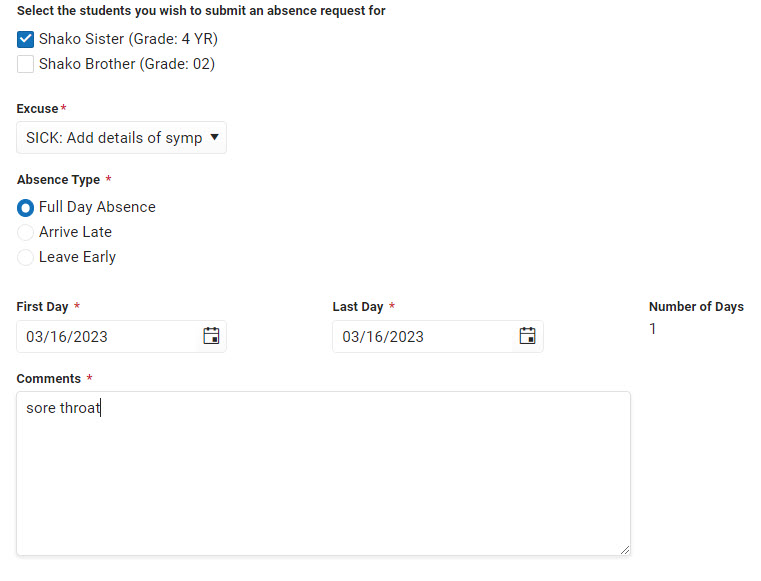
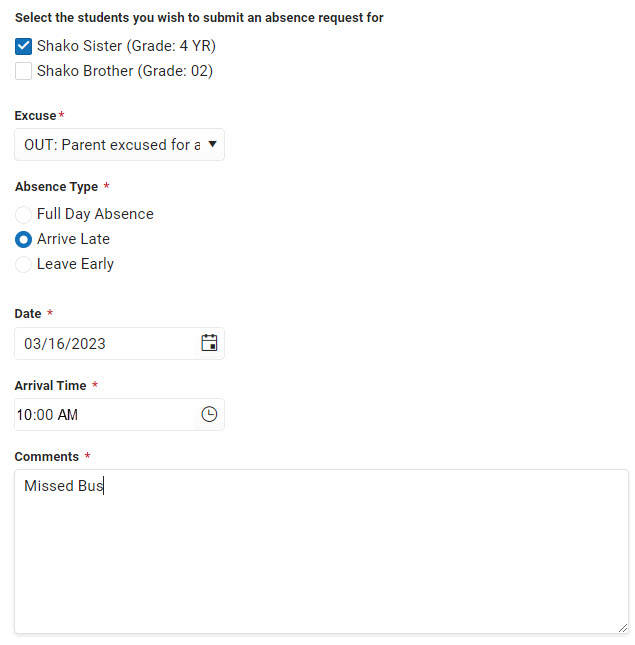
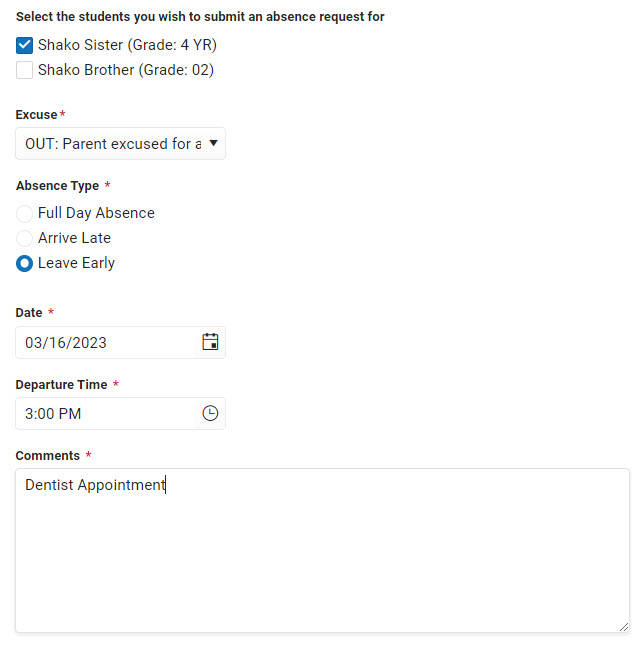
- Mark the student
- Select the Excuse (Sick, Out, Holiday)
- Select the Absence Type
- Enter the date(s)
- Enter Comments
Click Submit
Full Day
Arrive Late
Leave Early
View Absence Requests
To view previously submitted absence requests
Click View Requests (located at the bottom of the screen) 
Details of existing requests display
Delete Absence Request
You can only delete an unprocessed absence request
Click View Requests (located at the bottom of the screen) > Request > Click Delete Request
Family Information (Contact Update)
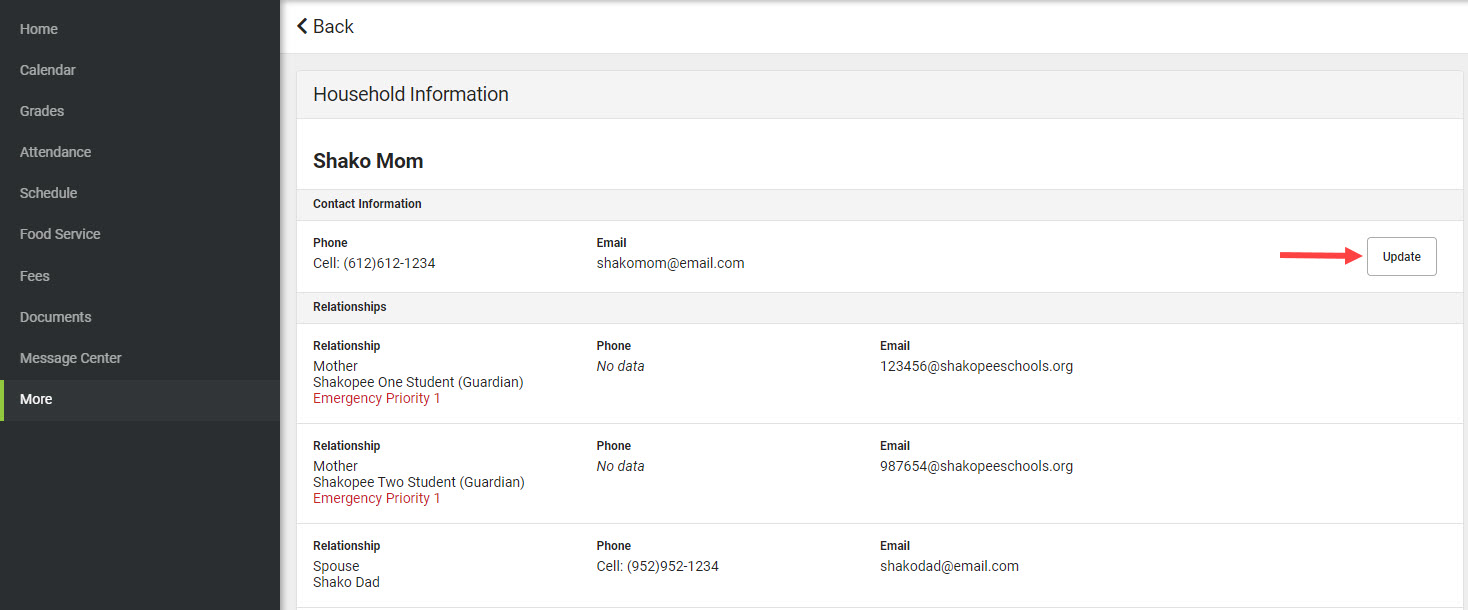
Includes contact information for family members. Users are able to update Email address and Phone Number at this time. Please do NOT Update your child's email address. This is an automated field.
Menu > More > Family Information
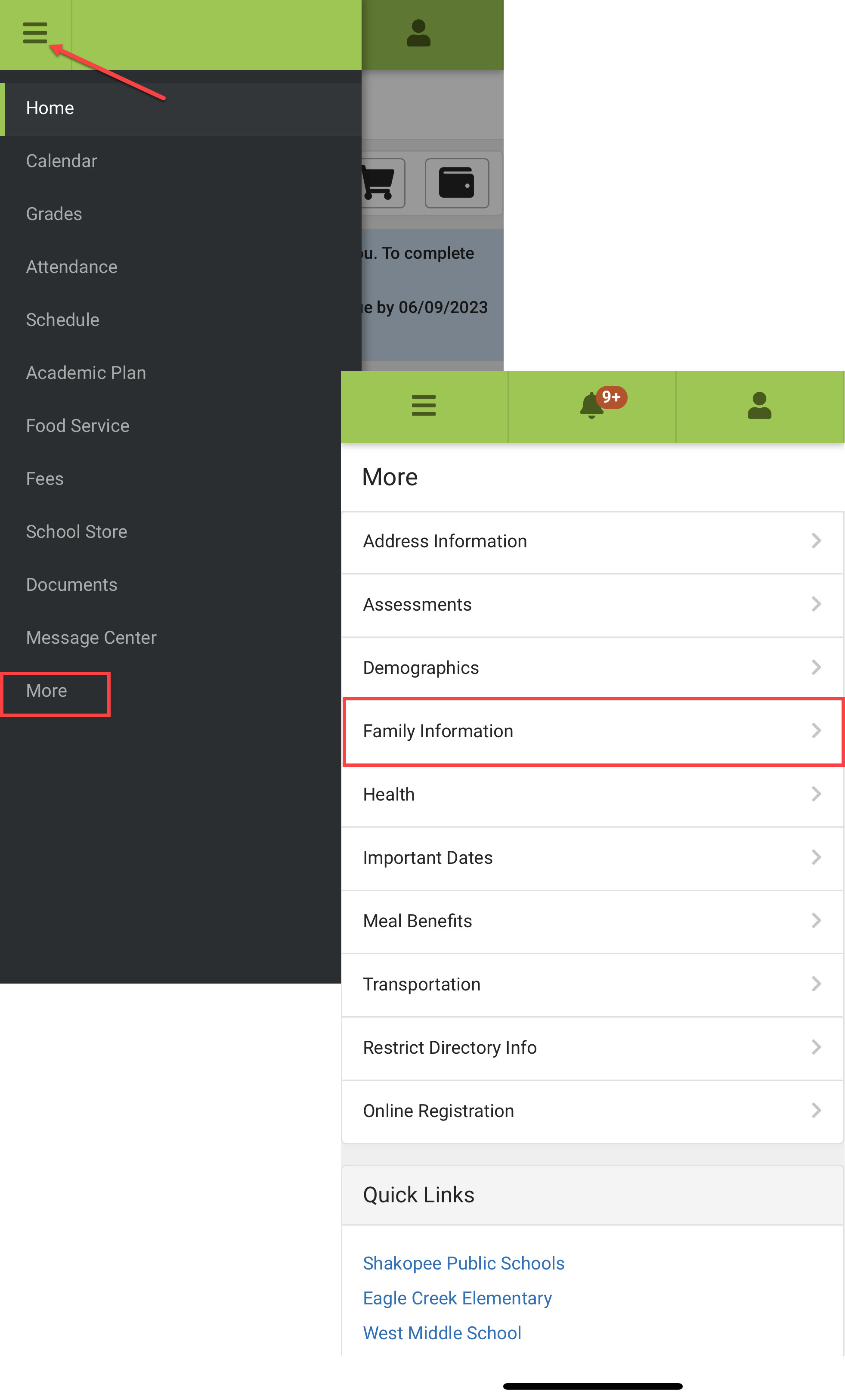
Click Update
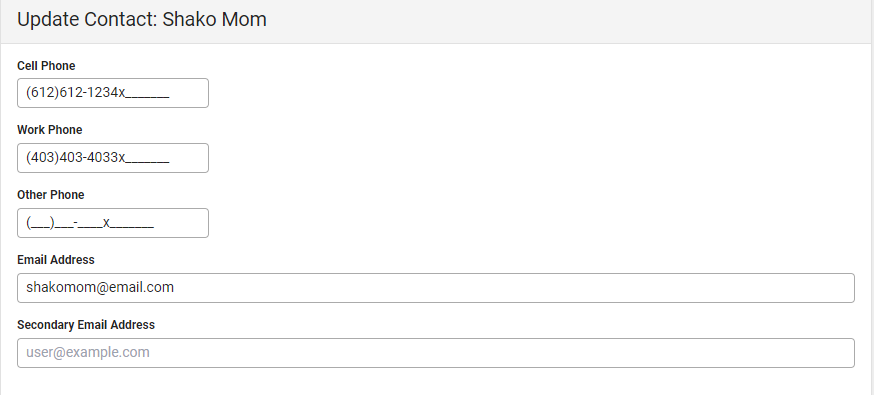
Enter or Modify existing Email or Phone.
Click Update
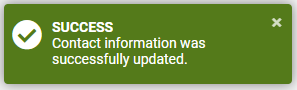
This update does not add or change Messenger preferences. If you are not receiving automated calls, texts or emails from the district contact your school office to verify your delivery preferences.
Fees
Fees may include items such as technology device insurance, damaged book assessments, costs for specific courses, and so on. They are generally assigned to all or to specific students in a household. Filter fees by Type. **Parking passes are located in the School Store.
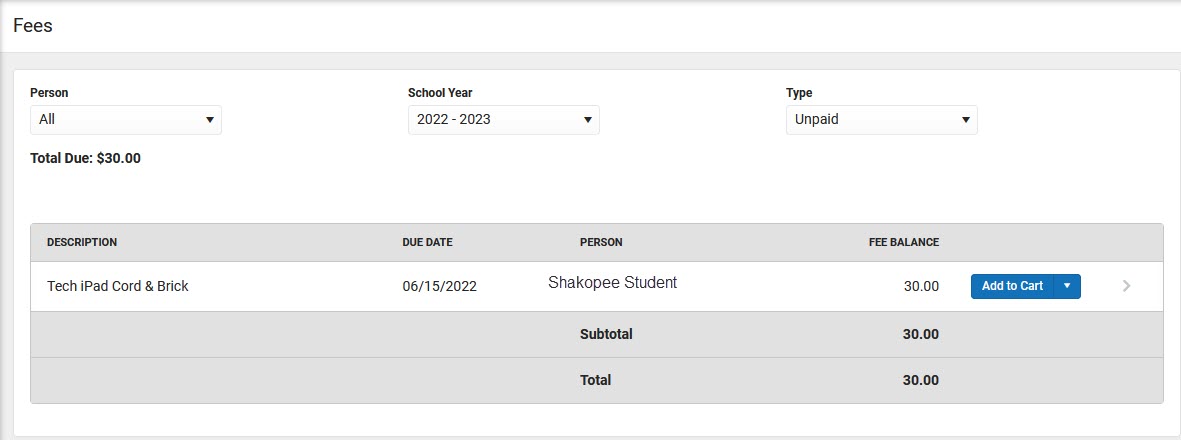
Select Add to Cart next to the Fee you want to pay.
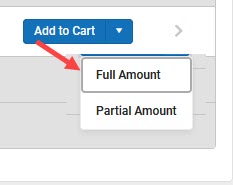
*You can partially pay a fee, click the arrow and select Partial Amount. Enter the amount yu want to pay then click Add to Cart
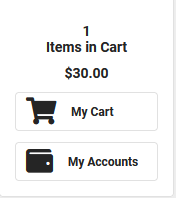
You can also add Food Service payments before checking out.
Select My Cart
Checkout screen will display with all items added to your cart. You can click the You can add additional Fees before checking out. You can also add Food Service payments before checking out. Remove button if you do not wish to pay for an item at this time. You can also adjust the partial payment amount.
Select the Payment Method and enter an Email Address for receipt.
Click the Add Payment Method button if the card or account you want to use is not set up.

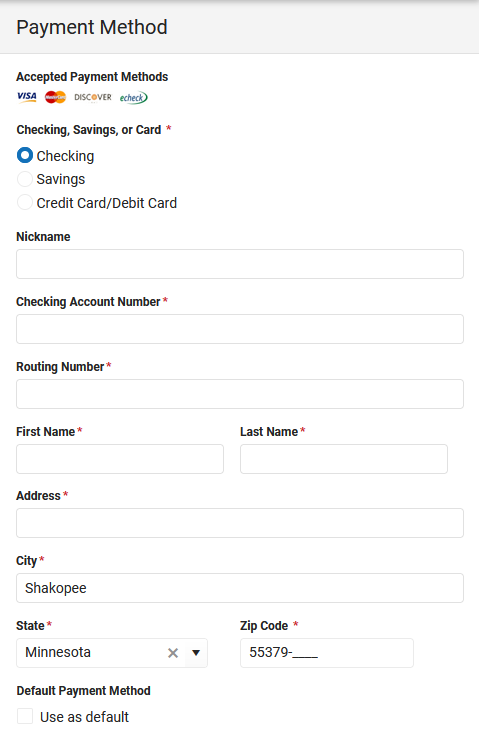
Select
A confirmation message displays. Click OK. The Receipt screen displays.
Food Service
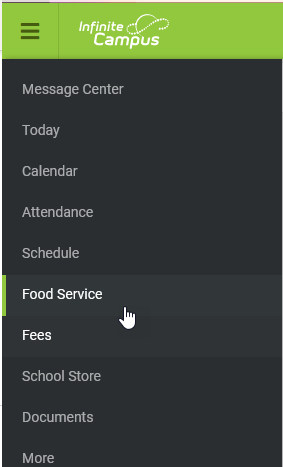
Campus Parent > Food Service
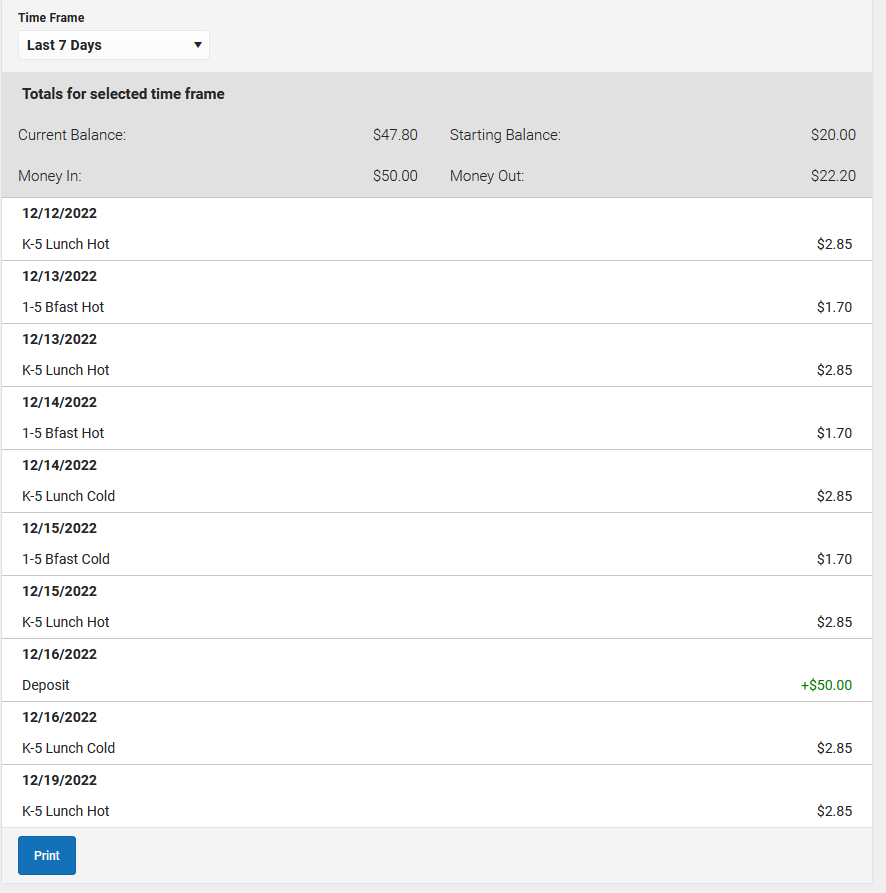
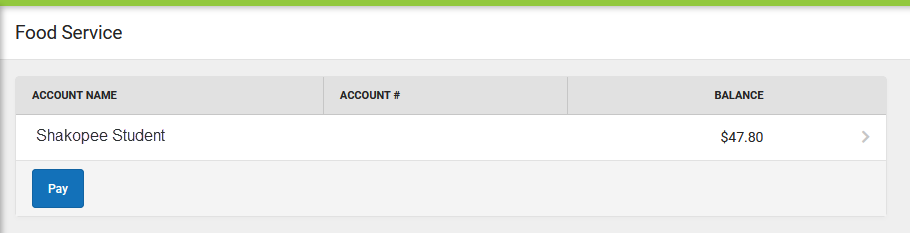
In this tool you can view current account balance along with items purchased and funds added.
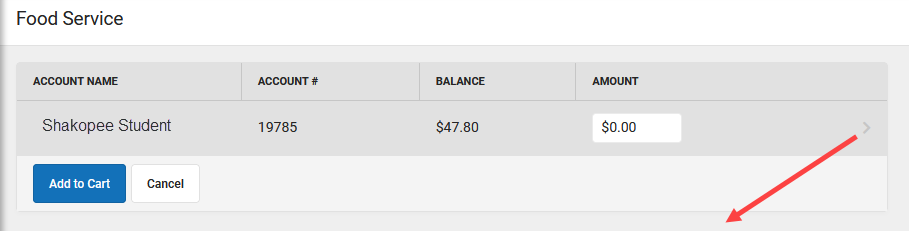
Click Pay to start the process of adding more funds to the account.
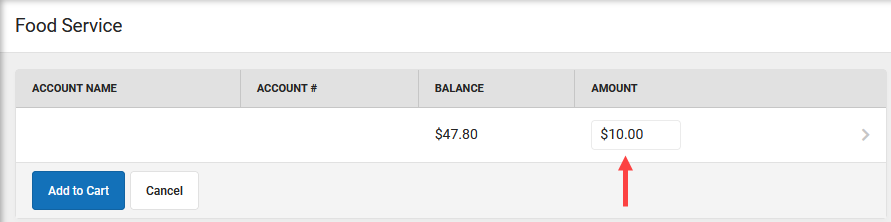
The "Amount" section in this screen is where you would enter the amount of money to be added to the account. Then click Add to Cart.
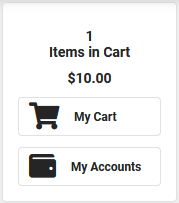
Select My Cart
Select the Payment Method and enter an Email Address for receipt.
Click the Add Payment Method button if the card or account you want to use is not set up.
Select
A confirmation message displays. Click OK. The Receipt screen displays.
Grades
Grades >
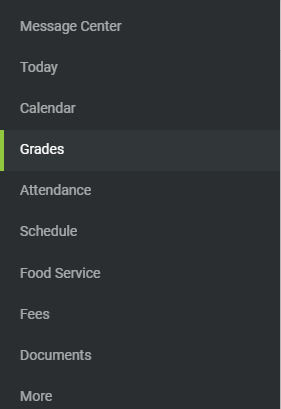
Show grades for a single quarter, previous quarter or for the entire year by selecting an option at the top
**Your selection will change the Grades view window

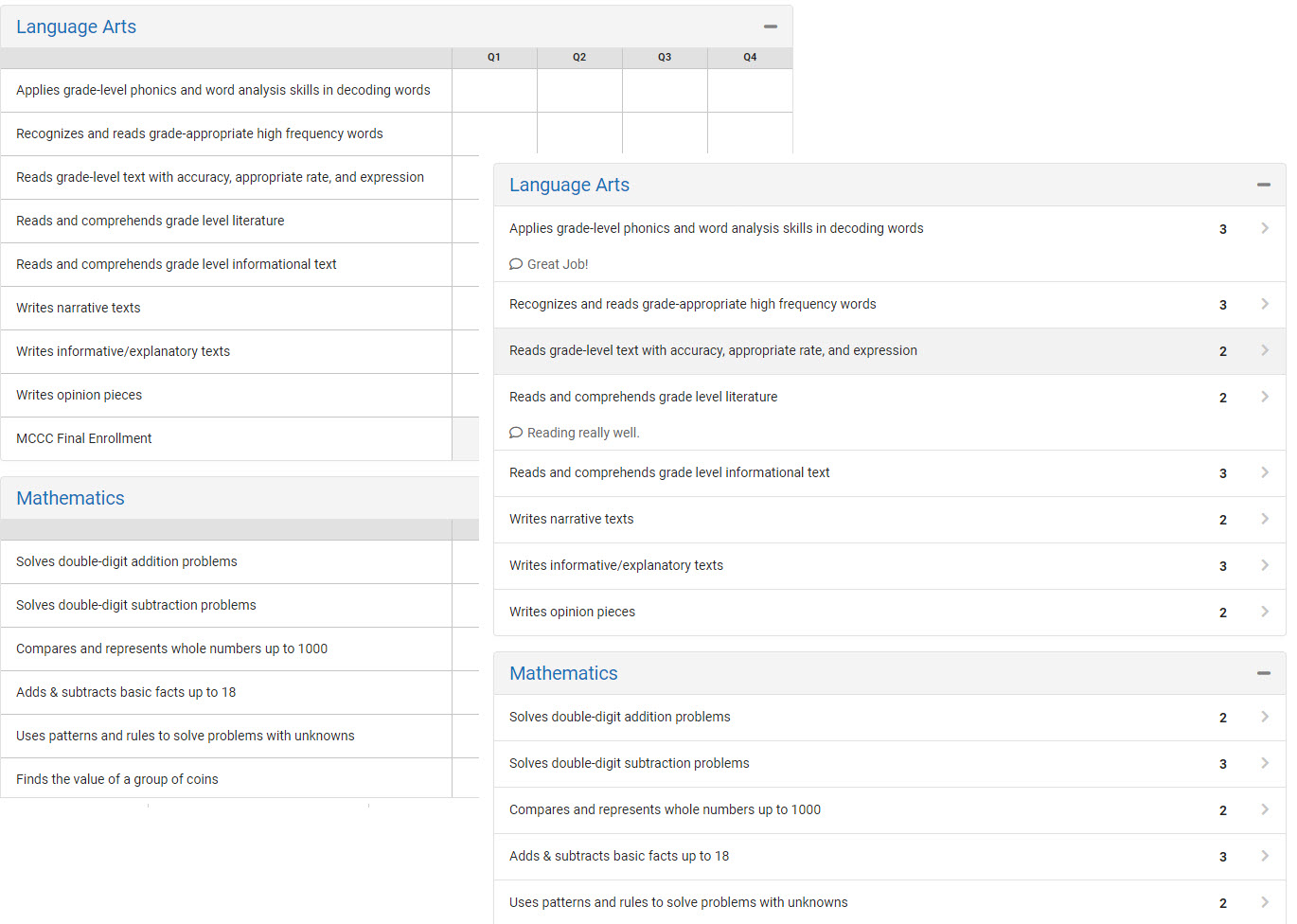
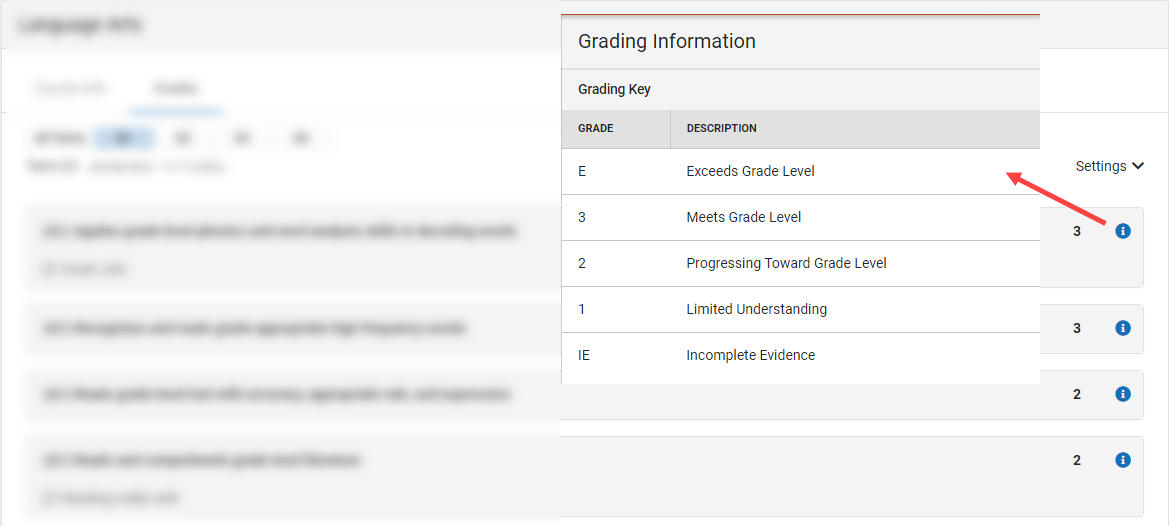
When viewing by Quarter you can click the gray arrow to expand the subject. This is where you will find the blue i
which will bring up the Grade Key
Report Card
You can always check Infinite Campus to view any report cards that have been posted throughout the school year and previous historical years.
Documents > Verify School Year > Select Term Report Card

The report card will open in a new browser tab where you can view, download and print

School Store
The School Store is for items that can be purchased but are not necessarily required. An example of this might be a parking pass, yearbook or similar item. Currently, all school stores have an option to add food service Angel Funds.
Campus Parent > School Store
In this tool you can view current account balance along with items purchased and funds added.

Click Shop on the school where you would like to make a purchase

View available items

Select Recipient > Add to Cart

The checkout process (once you get to the cart) is the same as described for fees and food service items above.
Transcript
Transcripts are available to view during the current school year + 90 days after the last day of school
Documents > Transcript
Transportation
The Infinite Campus Parent Portal can be used to review Transportation information.
Prior to the finalization of bus routes during the summer, this section may not be available. The district will communicate when transportation information has been posted and available for review.
Visit the district website for general information about transportation and related forms.
More > Transportation

Need Help?